Overview
This tutorial demonstrates several ways to bulk download AVIRIS datasets from the NASA Earthdata.
Multiple access methods are presented that best fits your compute environments
HTTPS Methods:
earthaccess(HTTPS download): For local workstations and on-prem serverswget/curl: Scripts/shell pipelines for downloading. Needs.netrcfiles for NASA Earthdata authentication.Earthdata Download application: GUI-based workflow from Earthdata Search.
S3 Methods:
earthaccessS3 Store: For compute running in AWS. Egress cost is free for in-region us-west-2 access.AWS CLI: Usingaws s3 cpfor large transfers. Egress cost is free for in-region us-west-2 access.
AVIRIS Facility Instruments Datasets
| Dataset | DOI | Short Name | Concept ID |
|---|---|---|---|
| AVIRIS-5 | |||
| L1B Calibrated Radiance | Eckert et al. (2026) | AV5_L1B_RDN_2483 | C4076410273-ORNL_CLOUD |
| L2A Orthocorrected Surface Reflectance | Brodrick et al. (2026) | AV5_L2A_RFL_2484 | C4184090548-ORNL_CLOUD |
| L2B Greenhouse Gas Enhancements | Thorpe et al. (2026) | AV5_L2B_GHG_2485 | C4184090548-ORNL_CLOUD |
| AVIRIS-3 | |||
| L1B Calibrated Radiance | Eckert et al. (2025) | AV3_L1B_RDN_2356 | C3236537162-ORNL_CLOUD |
| L2A Orthocorrected Surface Reflectance | Brodrick et al. (2025) | AV3_L2A_RFL_2357 | C3369603199-ORNL_CLOUD |
| L2B Greenhouse Gas Enhancements | Chlus et al. (2025) | AV3_L2B_GHG_2358 | C3236537512-ORNL_CLOUD |
| AVIRIS-NG | |||
| L1B Calibrated Radiance | Green et al. (2023) | AVIRIS-NG_L1B_radiance_2095 | C2662359874-ORNL_CLOUD |
| L2 Surface Reflectance | Green et al. (2023) | AVIRIS-NG_L2_Reflectance_2110 | C4076410273-ORNL_CLOUD |
| AVIRIS-Classic | |||
| L1B Calibrated Radiance | Green et al. (2023) | AVIRIS-Classic_L1B_Radiance_2155 | C2714723060-ORNL_CLOUD |
| L2 Calibrated Reflectance | Green et al. (2023) | AVIRIS-Classic_L2_Reflectance_2154 | C2711871294-ORNL_CLOUD |
Prerequisities
A Free NASA Earthdata Login account is required. See the prerequisites page for setup instructions. For the AWS CLI method, the AWS CLI also needs to be installed.
Import Libraries
import earthaccess
import pandas as pd
from pathlib import PathAuthentication
Downloading from NASA Earthdata requires NASA Earthdata Login. For bulk downloads, configure ~/.netrc file in your root directory for storing the login credentials. earthaccess module’s persist=True can create the .netrc file.
auth = earthaccess.login(persist=True)Estimating the total size of the collection
Before starting a large download, make sure you have enough space to store the granules. You can estimate the total dataset size using the following example.
def ds_size(granules):
    """Returns total dataset size in GB"""
    total_mb = 0
    for g in granules:
        total_mb += g.size
    return total_mb / 1024

# AVIRIS-C Level 2 reflectance
short_name = "AVIRIS-Classic_L2_Reflectance_2154"
# Searching entire collection
granules = earthaccess.search_data(
    short_name=short_name
)
print(f"{short_name} dataset has {len(granules)} granules totalling {ds_size(granules):,.1f} GB")
AVIRIS-Classic_L2_Reflectance_2154 dataset has 2439 granules totalling 26,313.2 GB
Filter the search using spatial and temporal bounds
The total dataset you want to download can be limited by providing a temporal (start and end dates) and spatial (bounding box or region of interest) filters.
bbox = (-125, 32, -114, 42) # W, S, E, N coordinates for California/Nevada
granules = earthaccess.search_data(
    short_name=short_name,
    bounding_box = bbox,
    temporal=('2025-01-01','2025-12-31')
)
print((f"For California/Nevada within the year 2025,"))
print((f"{short_name} dataset has {len(granules)} granules totalling {ds_size(granules):,.1f} GB"))
For California/Nevada within the year 2025,
AVIRIS-Classic_L2_Reflectance_2154 dataset has 303 granules totalling 4,177.1 GB
Filter the search using project keywords
When the granules are tagged with project keyword(s), for example as in AV5_L2A_RFL_2484, they can be filtered as following would only search for the granules tagged with “GEM-X” campaign keyword.
project = 'GEMx'
sname = 'AV5_L2A_RFL_2484'
query = earthaccess.DataGranules().short_name(sname)
query.params['campaign'] = project
granules = query.get_all()
print(f'Total {sname} granules found for {project} project: {len(granules)}')
Total AV5_L2A_RFL_2484 granules found for GEMx project: 4236
Method 1 (HTTPS). Bulk Download with earthaccess
earthaccess.download() is the simplest approach to download over HTTPS using your Earthdata login. earthaccess runs multiple threads in parallel, and skips the files that already exists in the destination folder. In the example, we will loop through all the granules, but we will download in a batch of 25 files at a time.
THREADS = 8 # tune to your system's bandwidth; recommended values from 4-16
download_dir = Path("./AVIRIS_DIR") # Desination directory

files = earthaccess.download(
    granules,
    local_path=download_dir,
    threads=8
)
Method 2 (HTTPS). Download with wget/curl
For shell-based workflow, export the HTTPS URLs of the granules to a text file. Then, use wget or curl to download using the text file. It will use the Earthdata login authentication stored in a .netrc file.
# retrieve all granule URLS
granule_urls = []
for g in granules:
    granule_urls.extend(g.data_links())

# write the URLs to a file
granule_urls_file = download_dir / "granule_urls.txt"
with open(granule_urls_file, 'w') as f:
    for url in granule_urls:
        f.write(f"{url}\n")

print(f"Wrote {granule_urls_file}.")
earthaccess.login(persist=True) command we executed at the start of this notebook should create a .netrc file in your home directory and apply necessary permissions (600). The content of the .netrc file will be structured like the following:
machine urs.earthdata.nasa.gov
    login YOUR_EARTHDATA_USERNAME
    password YOUR_EARTHDATA_PASSWORD
Now, we can use the bash script below to download the files with wget:
wget --load-cookies ~/.urs_cookies --save-cookies ~/.urs_cookies \
     --keep-session-cookies --no-check-certificate \
     -c -N -P AVIRIS_DIR -i AVIRIS_DIR/granule_urls.txt
If you want to use curl, the following command will download the files:
while read -r url; do
    curl -L -n -b ~/.urs_cookies -c ~/.urs_cookies -C - \
         -o "AVIRIS_DIR/$(basename "$url")" "$url"
done < AVIRIS_DIR/granule_urls.txt
For parallel downloading, use xargs as follows:
cat AVIRIS_DIR/granule_urls.txt | \
    xargs -n 1 -P 8 -I {} \
    wget -c -N -P AVIRIS_DIR --load-cookies ~/.urs_cookies \
         --save-cookies ~/.urs_cookies --keep-session-cookies {}
Method 3 (HTTPS). Download using EarthData Download (EDD) Manager
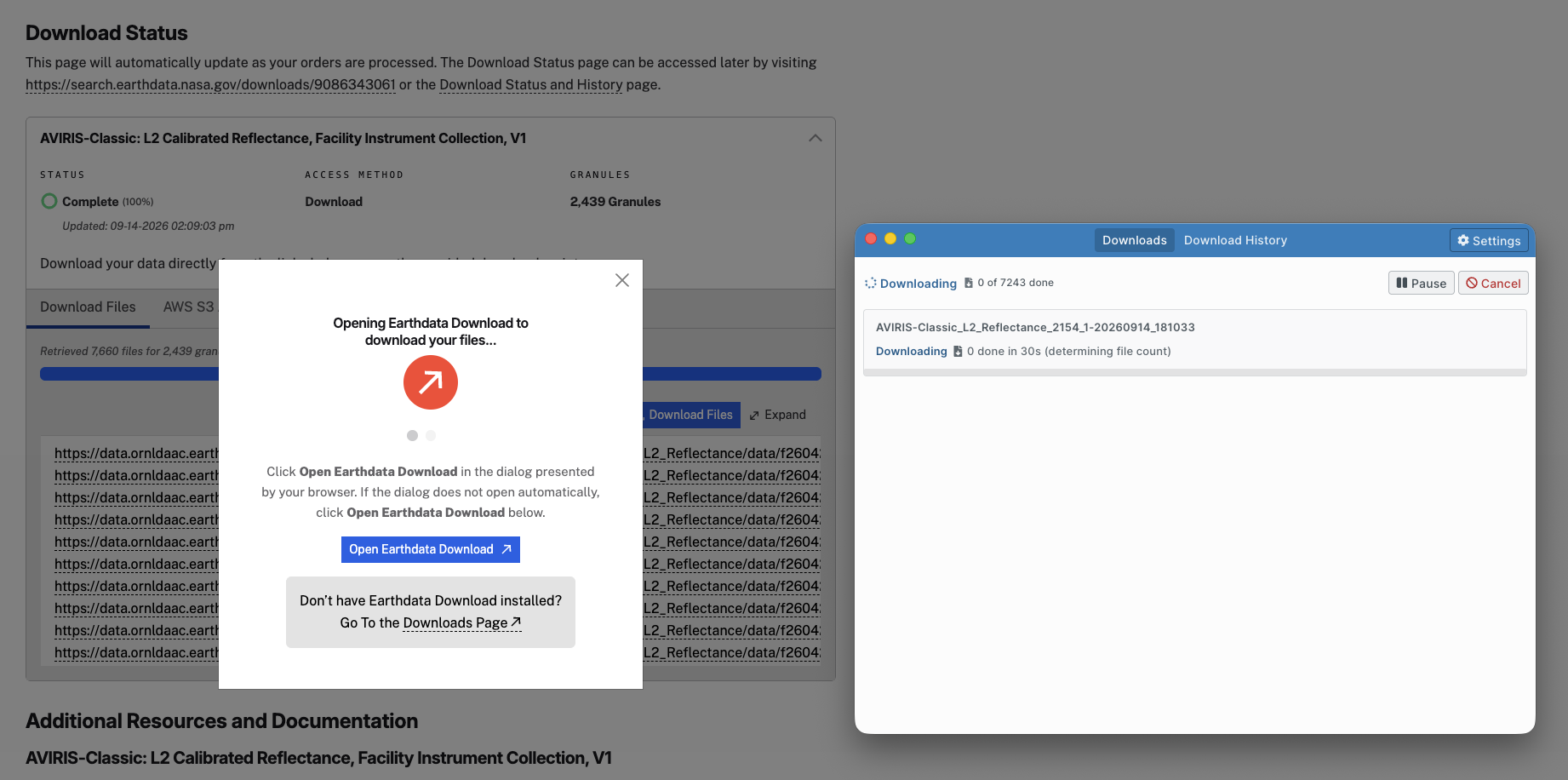
EarthData Download (EDD) is a free desktop application from NASA to simplify downloading large data requests. EDD acts as a dedicated GUI-based download manager and manages authentication and simultaneuous downloads without scripting any codes.
The workflow to download using EDD:
Install EDD on your computer by downloading from here: https://
nasa .github .io /earthdata -download/ In Earthdata Search, search for a dataset (e.g., AVIRIS-Classic Level 2).
(Optional) Apply any additional granule filters (such as spatial extent, temporal range, etc.) in the left navigation bar.
Add the granules to your project by clicking the green + signs next the each granules, and click the “Download” button (blue) and then “Download Data” and finally the “Download Files” (blue) buttons.
Earthdata Search hands over the granules to the EarthData Downloader (EDD) app, which then manages the download process, showing per-granule progress.
Method 4 (Cloud). In-region Direct S3 Access
If your compute runs in AWS us-west-2 region, you can read the files directly from NASA Earthdata S3 buckets without needing to download them, or copy them within the region at high speed and no egress cost.
You can use the following
store = earthaccess.Store(auth=auth)

#download the granules to a local directory
files = store.get(
    granules=granules,
    local_path=download_dir,
    threads=4
)Method 5 (Cloud). Download using AWS CLI
aws s3 cp can be used to transfer bulk file to your local directory.
First, retrieve the temporary S3 credentials. The credentials expires in one hour.
creds = earthaccess.get_s3_credentials(daac="ORNLDAAC")

#################################
# Uncomment below to show how to export them for the AWS CLI
#################################
#print(f"export AWS_ACCESS_KEY_ID={creds['accessKeyId']}")
#print(f"export AWS_SECRET_ACCESS_KEY={creds['secretAccessKey']}")
#print(f"export AWS_SESSION_TOKEN={creds['sessionToken']}")
#print('export AWS_DEFAULT_REGION=us-west-2')
Now, let’s write all s3 object list into a file.
# retrieve all s3 URLS
s3_urls = []
for g in granules:
    s3_urls.extend(g.data_links(access='direct'))

# write the URLs to a file
s3_list_file = download_dir / "s3_objects.txt"
with open(s3_list_file, 'w') as f:
    for url in s3_urls:
        f.write(f"{url}\n")

print(f"Wrote {s3_list_file}.")
Wrote AVIRIS_C_DIR/s3_objects.txt.
Once the credentials is exported as above and we have the list of s3 urls in a file, we can use the following bash commands from the shell.
while read -r url; do
    fname=$(basename "$url")
    [ -f "AVIRIS_DIR/$fname" ] && continue
    aws s3 cp "$url" "AVIRIS_DIR/$fname"
done < AVIRIS_DIR/s3_objects.txt
You can also use the following to tune your CLI for concurrent requests:
aws configure set default.s3.max_concurrent_requests 20
aws configure set default.s3.multipart_chunksize 64MB- Eckert, R., Thompson, D. R., Chlus, A. M., Chapman, J. W., Eastwood, M., Bernas, M., Geier, S., Keymeulen, D., Sullivan, P., Olson-Duvall, W., Greenberg, E., Green, R. O., & Brodrick, P. G. (2026). AVIRIS-5 L1B Calibrated Radiance, Facility Instrument Collection. ORNL Distributed Active Archive Center. 10.3334/ORNLDAAC/2483
- Brodrick, P. G., Chlus, A. M., Bohn, N., Greenberg, E., Montgomery, J., Chapman, J. W., Eastwood, M., Lundeen, S. R., Eckert, R., Olson-Duvall, W., Thompson, D. R., & Green, R. O. (2026). AVIRIS-5 L2A Orthocorrected Surface Reflectance, Facility Instrument Collection. ORNL Distributed Active Archive Center. 10.3334/ORNLDAAC/2484
- Thorpe, A. K., Fahlen, J., Chlus, A. M., Brodrick, P. G., Chapman, J. W., Jensen, D. J., Coleman, R. W., Olson-Duvall, W., Thompson, D. R., & Green, R. O. (2026). AVIRIS-5 L2B Greenhouse Gas Enhancements, Facility Instrument Collection. ORNL Distributed Active Archive Center. 10.3334/ORNLDAAC/2485
- Eckert, R., Thompson, D. R., Chlus, A. M., Chapman, J. W., Eastwood, M., Bernas, M., Geier, S., Helmlinger, M., Keymeulen, D., Liggett, E., Nadgauda, S., Rios, L. M., Shaw, L. A., Olson-Duvall, W., Brodrick, P. G., & Green, R. O. (2025). AVIRIS-3 L1B Calibrated Radiance, Facility Instrument Collection. ORNL Distributed Active Archive Center. 10.3334/ORNLDAAC/2356
- Brodrick, P. G., Chlus, A. M., Bohn, U. N., Greenberg, E., Montgomery, J., Chapman, J. W., Eastwood, M., Lundeen, S. R., Eckert, R., Olson-Duvall, W., Thompson, D. R., & Green, R. O. (2025). AVIRIS-3 L2A Orthocorrected Surface Reflectance, Facility Instrument Collection. ORNL Distributed Active Archive Center. 10.3334/ORNLDAAC/2357
- Chlus, A. M., Brodrick, P. G., Thorpe, A. K., Chapman, J. W., Jensen, D. J., Coleman, R. W., Fahlen, J., Olson-Duvall, W., Thompson, D. R., & Green, R. O. (2025). AVIRIS-3 L2B Greenhouse Gas Enhancements, Facility Instrument Collection. ORNL Distributed Active Archive Center. 10.3334/ORNLDAAC/2358
- Green, R. O., Brodrick, P. G., Chapman, J. W., Eastwood, M., Geier, S., Helmlinger, M., Lundeen, S. R., Olson-Duvall, W., Pavlick, R., Rios, L. M., Thompson, D. R., & Thorpe, A. K. (2023). AVIRIS-NG L1B Calibrated Radiance, Facility Instrument Collection, V1. ORNL Distributed Active Archive Center. 10.3334/ORNLDAAC/2095
- Green, R. O., Brodrick, P. G., Chapman, J. W., Eastwood, M., Geier, S., Helmlinger, M., Lundeen, S. R., Olson-Duvall, W., Pavlick, R., Rios, L. M., Thompson, D. R., & Thorpe, A. K. (2023). AVIRIS-NG L2 Surface Reflectance, Facility Instrument Collection, V1. ORNL Distributed Active Archive Center. 10.3334/ORNLDAAC/2110
- Green, R. O., Thompson, D. R., Boardman, J. W., Chapman, J. W., Eastwood, M., Helmlinger, M., Lundeen, S. R., & Olson-Duvall, W. (2023). AVIRIS-Classic: L1B Calibrated Radiance, Facility Instrument Collection, V1. ORNL Distributed Active Archive Center. 10.3334/ORNLDAAC/2155
- Green, R. O., Thompson, D. R., Boardman, J. W., Chapman, J. W., Eastwood, M., Helmlinger, M., Lundeen, S. R., & Olson-Duvall, W. (2023). AVIRIS-Classic: L2 Calibrated Reflectance, Facility Instrument Collection, V1. ORNL Distributed Active Archive Center. 10.3334/ORNLDAAC/2154