AVIRIS-5 datasets are provided in netCDF-4 format. In this tutorial, we will learn how to convert AVIRIS-5 netCDF file to ENVI format and open in the geospatial analysis software ENVI.
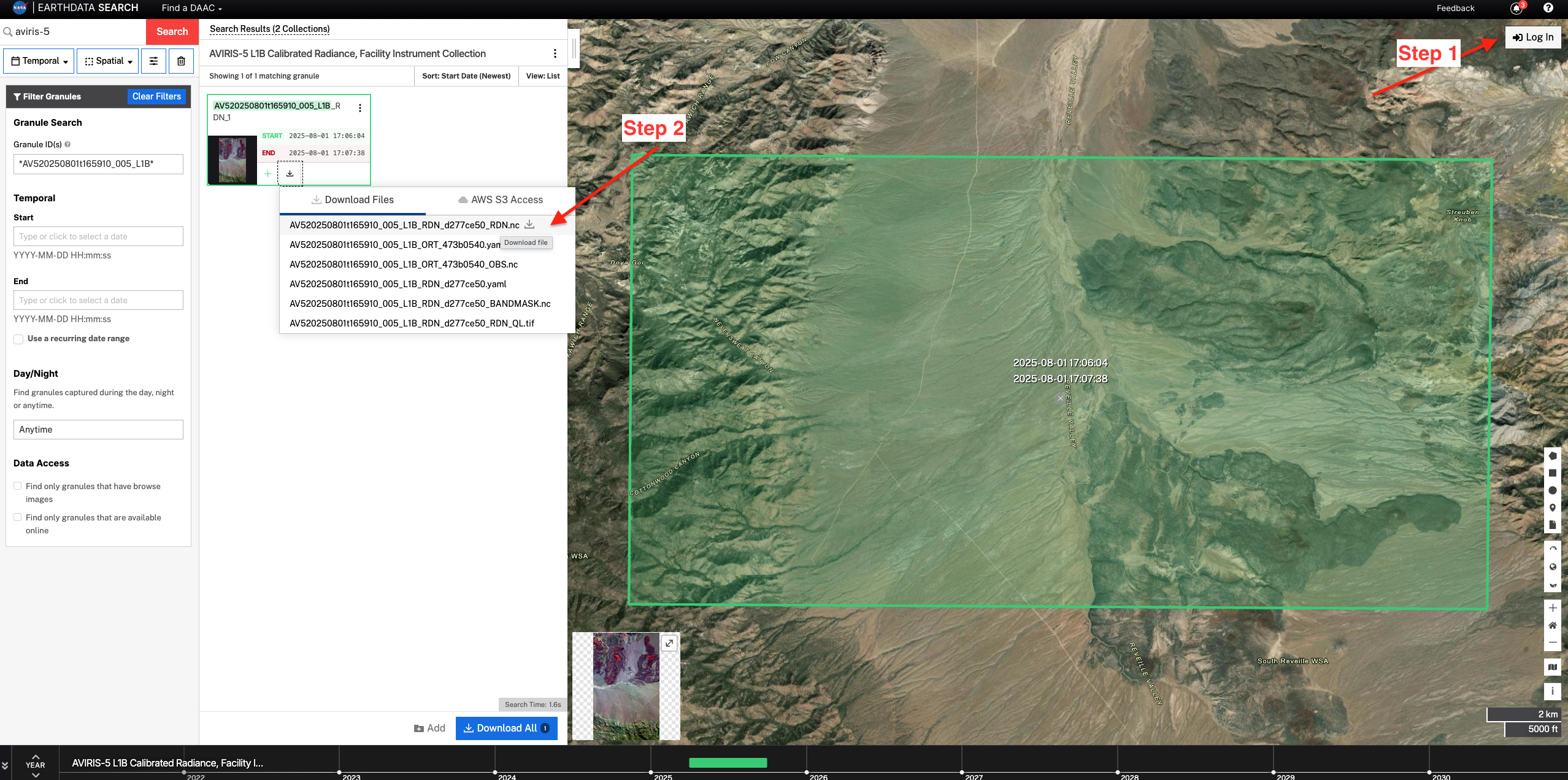
Download L1B granule
For this tutorial, we will use a granule AV520250801t165910
Convert AVIRIS-5 netCDF to ENVI format
Python SpectralUtil tools supports conversion of AVIRIS-5 netCDF4 formatted files to ENVI format. We will use SpectralUtil to convert the downloaded netCDF file.
First, install the SpectralUtil using the pixi. Follow the instructions here to install pixi if it is not alerady installed.
git clone git@github.com:emit-sds/SpectralUtil.git
cd SpectralUtil
pixi install
Now, we can use pixi run to run the following command
spectral_util reformat nc-to-envi AV520250801t165910_005_L2A_OE_da8b3ef7_RFL_ORT.nc AV520250801t165910_005_L2A_OE_da8b3ef7_RFL_ORT.bin3. Open the file in ENVI
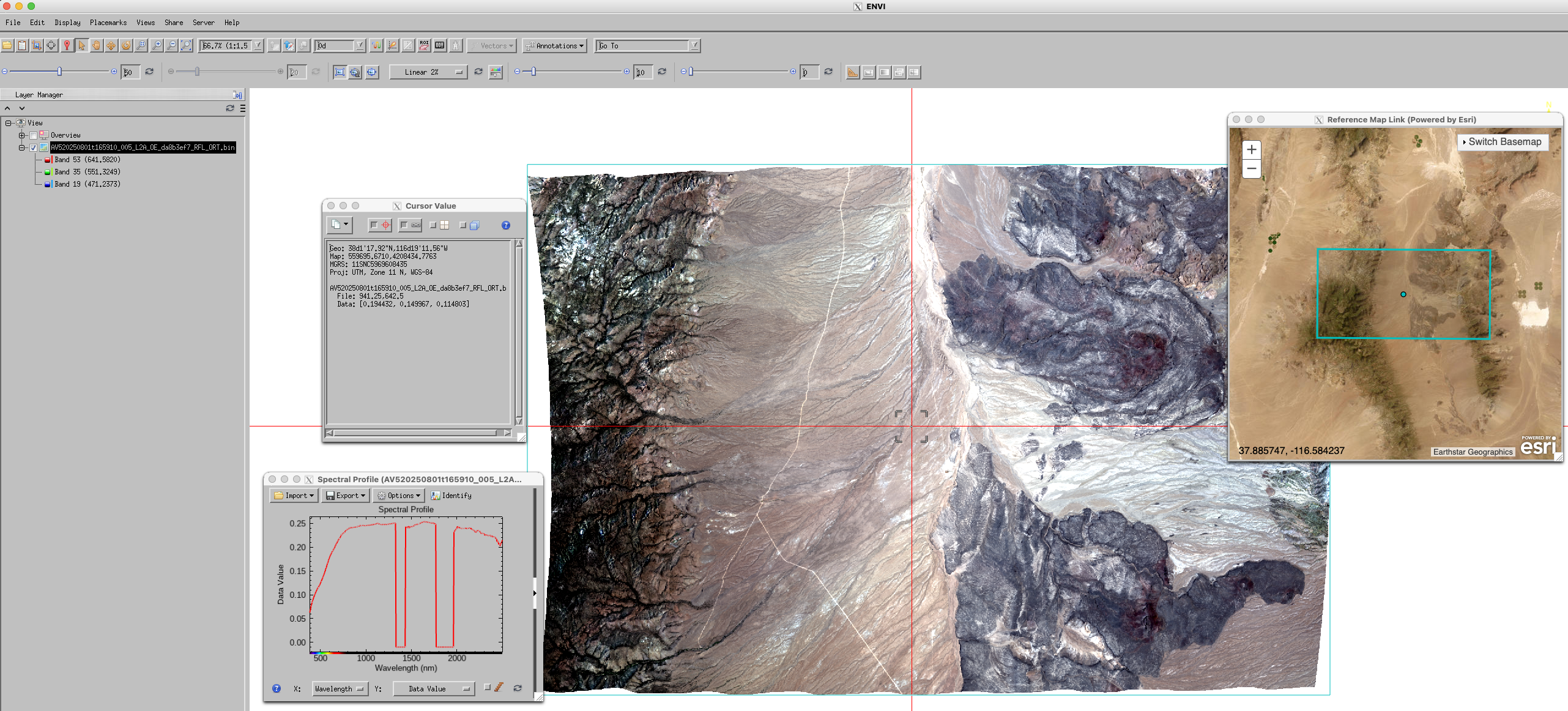
Once the conversion is complete, the output file AV520250801t165910_005_L2A_OE_da8b3ef7_RFL_ORT.bin can be directly opened into ENVI. You can also click Views > Reference Map Link to check the location of the image. And, click Display > Profiles > Spectral to display spectral profile of a pixel, and Display > Cursor Value to display cursor value and location.